
How to Fix ERR_SSL_VERSION_OR_CIPHER_MISMATCH
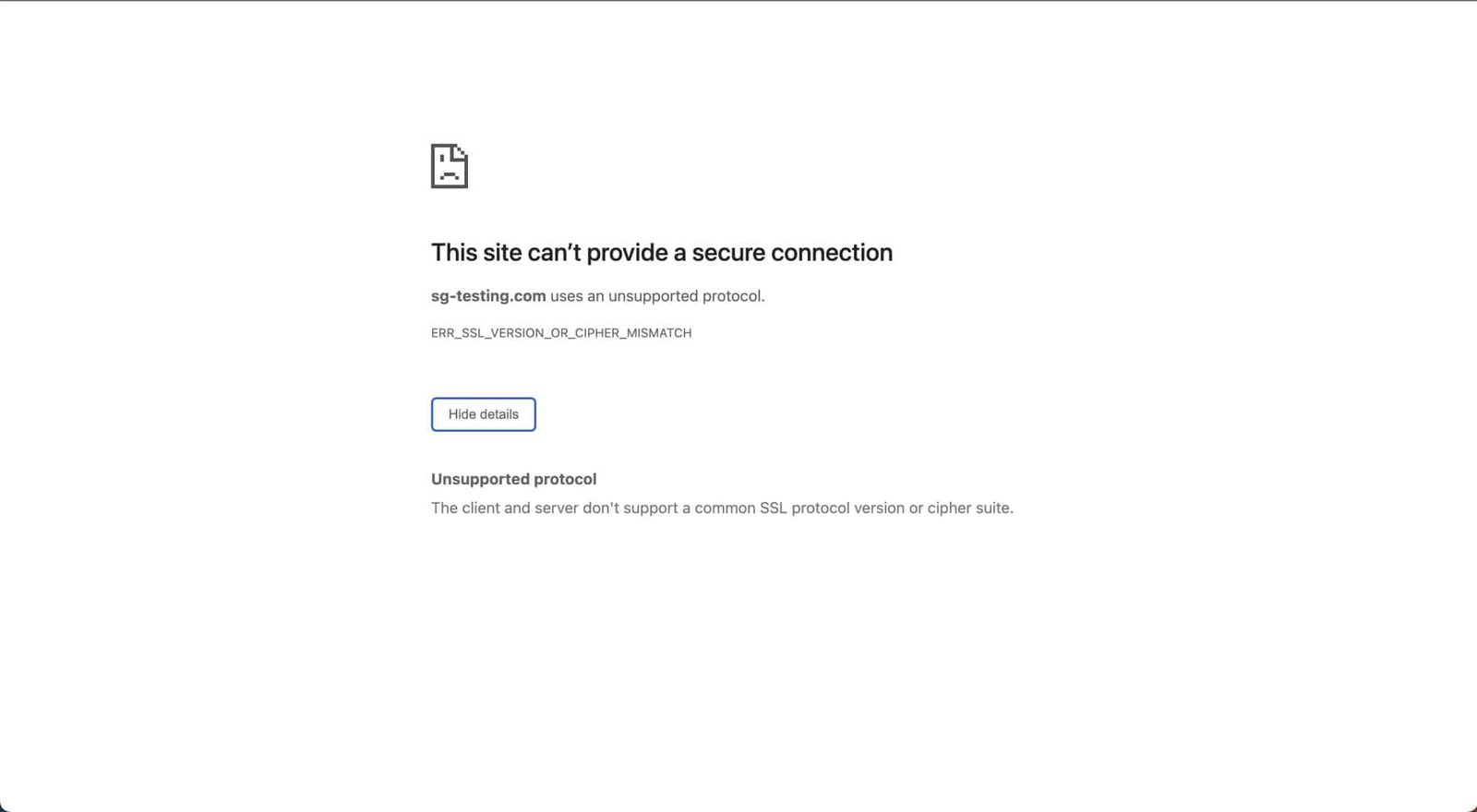
This error means your browser and the website’s server couldn’t agree on a shared SSL/TLS protocol version or cipher suite — so the secure connection never starts. The good news: it’s almost always fixable in a few minutes. This guide covers every common cause and fix, for both visitors who just want to open a page and site owners who need to repair their own server, with specific steps for Chrome, Edge, Cloudflare, and WordPress.
chrome://flags/#enable-quic. If it’s your own website, the cause is server-side: make sure TLS 1.2 and 1.3 are enabled (and old TLS 1.0/1.1 are off), confirm your SSL certificate is valid and not expired, use a modern cipher suite, and — on Cloudflare — set the SSL/TLS mode to Full (strict). The error literally means the client and server can’t support a common ssl protocol version or cipher suite, so the fix is always about aligning those two.
What Does ERR_SSL_VERSION_OR_CIPHER_MISMATCH Mean?
Every time you load an https:// page, your browser and the web server perform a quick negotiation called the TLS handshake. They compare two things: which SSL/TLS protocol versions each side supports (for example TLS 1.2 or TLS 1.3), and which cipher suites — the encryption algorithms — they have in common. If they can’t find at least one match on both, the handshake fails and the browser stops the connection with ERR_SSL_VERSION_OR_CIPHER_MISMATCH.
In plain terms: the two computers tried to speak securely, but they don’t share a common “encryption language.” This is a deliberate safety mechanism. Chrome (and other Chromium browsers like Edge) would rather block the page than connect using an outdated, insecure protocol. That’s why you usually can’t simply click “proceed anyway” — there’s no safe way to continue without fixing the underlying mismatch.
The error appears most often in Google Chrome and Microsoft Edge, but the root cause is the same everywhere. It falls into two camps, and identifying yours saves a lot of time:
Common Causes of the SSL Version or Cipher Mismatch
| Cause | Whose side? | Why it triggers the error |
|---|---|---|
| Outdated browser | Visitor | An old Chrome/Edge build lacks modern TLS support, so it can’t match the server. |
| Wrong system date & time | Visitor | A skewed clock makes valid certificates look invalid during the handshake. |
| QUIC protocol glitch | Visitor | Chrome’s experimental QUIC can occasionally break the negotiation. |
| Antivirus / firewall HTTPS scanning | Visitor | Security software intercepts TLS and offers an incompatible protocol set. |
| Expired or misconfigured SSL certificate | Site owner | An invalid, expired, or incomplete certificate chain fails the handshake. |
| Only old TLS enabled (1.0 / 1.1) | Site owner | Modern browsers refuse deprecated TLS versions, leaving no common protocol. |
| Weak / outdated cipher suites | Site owner | Servers offering only old ciphers (e.g., RC4) share none with the browser. |
| Cloudflare SSL mode mismatch | Site owner | Wrong SSL/TLS mode or a too-high minimum TLS version blocks valid clients. |
Fix It as a Visitor (Browser-Side Solutions)
If the error shows on sites you don’t control, work through these in order. After each step, reload the page to see if it’s resolved.
-
Update Your Browser to the Latest Version
Most cipher mismatches on the visitor side come from an outdated browser. In Chrome, openchrome://settings/help(or Edge:edge://settings/help); it checks for updates automatically. Install any update, then relaunch the browser completely and try again. -
Check Your Computer’s Date & Time
A wrong clock is a surprisingly common cause, because certificates are time-sensitive. Set your date, time, and time zone to update automatically (Windows: Settings → Time & language → Date & time; macOS: System Settings → General → Date & Time). Then reload. -
Clear the SSL State and Browser Cache
Cached SSL data can keep serving a broken handshake. In Chrome, clear browsing data (chrome://settings/clearBrowserData→ Cached images and files + Cookies). On Windows you can also clear the system SSL cache via Internet Options → Content → Clear SSL state. -
Disable the QUIC Protocol
Chrome’s experimental QUIC can interfere with TLS. Go tochrome://flags/#enable-quic, set Experimental QUIC protocol to Disabled, and relaunch. In Edge, useedge://flags/#enable-quic. Re-enable it later once the site is reachable if you prefer. -
Test in Incognito and Disable Extensions
Open the page in an Incognito/InPrivate window. If it loads there, an extension is the culprit — disable extensions one by one (especially VPNs, ad blockers, and security add-ons) to find it. -
Temporarily Pause Antivirus HTTPS / SSL Scanning
Many security suites (and some firewalls) inspect encrypted traffic and can present an incompatible protocol set. Temporarily turn off the “HTTPS scanning,” “SSL/TLS scanning,” or “encrypted connections” feature in your antivirus, then reload. Turn it back on afterward. -
Update Your Operating System
Outdated OS versions ship outdated TLS libraries. Install pending Windows or macOS updates — this often restores support for the modern protocols the site requires.
err_ssl_version_or_cipher_mismatch chrome bypass (sometimes “bypass windows 10”). Be careful — unlike a simple certificate warning, this error usually has no safe “proceed anyway” option, and forcing past it would expose your data over an insecure or broken connection. The right move is to fix the protocol/cipher mismatch using the steps above (visitor) or below (site owner), not to bypass it.
Browser-Specific Notes: Chrome, Edge & Firefox
Google Chrome
The most common place you’ll see err_ssl_version_or_cipher_mismatch in chrome. Update via chrome://settings/help, disable QUIC at chrome://flags/#enable-quic, and clear browsing data. Chrome enforces modern TLS strictly, which is why old servers trip it.
Microsoft Edge
Edge is Chromium-based, so the fixes mirror Chrome: update at edge://settings/help, toggle QUIC at edge://flags/#enable-quic, and clear cache. Edge also respects Windows’ system-level TLS settings, so an OS update can help.
Mozilla Firefox
Firefox shows a different message (often “SSL_ERROR_NO_CYPHER_OVERLAP”) for the same root cause. Update Firefox, and avoid manually lowering TLS in about:config. If only Firefox fails, reset its TLS settings to defaults.
Fix It as a Site Owner (Server-Side Solutions)
If the error appears only on your own website — for visitors or in your own browser across devices — the mismatch is on the server. These fixes resolve the vast majority of cases.
-
Confirm Your SSL Certificate Is Valid and Not Expired
Run your domain through a free checker like SSL Labs’ SSL Server Test (ssllabs.com/ssltest). It flags an expired certificate, a name mismatch, or an incomplete chain (missing intermediate certificate) — all of which can trigger the error. Reissue or reinstall the certificate if any of these show. -
Enable TLS 1.2 and TLS 1.3
Modern browsers require TLS 1.2 at minimum and prefer 1.3. In your server config, make sure both are enabled. On Apache, setSSLProtocol -all +TLSv1.2 +TLSv1.3; on Nginx, usessl_protocols TLSv1.2 TLSv1.3;. Reload the server after saving. -
Disable Deprecated TLS 1.0 and 1.1
Old protocols don’t fix the error — but leaving only them enabled causes it, and they’re insecure either way. Remove TLS 1.0/1.1 from the config so the server negotiates only modern versions that browsers accept. -
Use a Modern Cipher Suite
If your server only offers outdated ciphers (like RC4 or 3DES), browsers will share none with it. Apply a current, recommended cipher list (the Mozilla SSL Configuration Generator produces ready-to-paste configs for Apache, Nginx, and others). Prioritize strong AES-GCM and ChaCha20 suites. -
Fix the Certificate Chain
A missing intermediate certificate is a frequent culprit. Make sure your installed certificate includes the full chain (your domain cert + the CA’s intermediate). Reinstalling the “full chain” / “bundle” file from your certificate provider usually resolves it. -
Reissue or Reinstall the SSL Certificate
If the certificate is corrupted or was installed incorrectly, generate a fresh one (Let’s Encrypt is free) and install the complete bundle. After reinstalling, restart the web server and re-test with SSL Labs.
Fixing ERR_SSL_VERSION_OR_CIPHER_MISMATCH on Cloudflare
If your site runs behind Cloudflare, the err_ssl_version_or_cipher_mismatch cloudflare variant usually comes down to two settings.
First, in your Cloudflare dashboard go to SSL/TLS → Overview and check the encryption mode. “Flexible” mode (and a mismatch between Cloudflare and your origin) can cause handshake problems; for a site with a valid certificate on the origin server, Full (strict) is the correct and most secure choice. Set it accordingly.
Second, go to SSL/TLS → Edge Certificates → Minimum TLS Version. If this is set too high (for example, forcing TLS 1.3 only), older but legitimate visitors get the cipher mismatch. Setting it to TLS 1.2 is a sensible default that’s both secure and broadly compatible. After changing either setting, wait a minute for it to propagate, then retest.
uses an unsupported protocol alongside the mismatch. It points to the same root cause — your origin and the edge can’t agree on a protocol. Aligning the encryption mode and minimum TLS version as above fixes both.
Fixing the Error on a WordPress Site
WordPress sites hit this error most often right after adding SSL, migrating hosts, or changing domains. Work through these checks:
- Confirm SSL is actually installed for your domain at the hosting level — not just “forced” in WordPress. A redirect to
https://without a valid certificate guarantees the error. - Update your WordPress URLs to
https://in Settings → General (Site Address and WordPress Address), then fix any mixed content (assets still loading overhttp://) with a plugin like Really Simple SSL. - Clear every cache — your caching plugin, server cache, and Cloudflare cache — after making SSL changes, so old insecure responses aren’t served.
- Re-issue the certificate from your host’s control panel if it was provisioned before the domain fully pointed to the server.
A large share of WordPress SSL headaches trace back to hosting that provisions certificates poorly or sticks to outdated TLS defaults. A managed host that automatically issues, renews, and configures SSL with modern TLS removes most of these misconfigurations before they happen — for example, Hostinger auto-installs free SSL and keeps TLS current on every plan, which is why fresh installs there rarely see this error. If you’re weighing a move, see our best WordPress hosting guide.
Still Seeing the Error? Final Checklist
If you’ve worked through the relevant section and the mismatch persists, run this quick checklist:
- Try a different network (e.g., mobile hotspot) — this rules out a router, ISP, or corporate firewall enforcing old TLS.
- Try a different device entirely — if every device fails on one site, it’s confirmed server-side.
- Flush your DNS cache (
ipconfig /flushdnson Windows) in case you’re hitting a stale or wrong server. - For your own site, re-run the SSL Labs test and fix anything below an A rating — the report names the exact protocol or cipher problem.
- Contact your hosting or CDN support with the SSL Labs results; with the protocol/cipher details in hand, they can correct the server config quickly.
Frequently Asked Questions
chrome://flags/#enable-quic. As a site owner: enable TLS 1.2 and 1.3, disable old TLS 1.0/1.1, use a modern cipher suite, confirm your SSL certificate is valid with a full chain, and (on Cloudflare) set the SSL mode to Full (strict).err_ssl_version_or_cipher_mismatch. Other browsers experience the same root cause but show different messages — Firefox, for instance, says “SSL_ERROR_NO_CYPHER_OVERLAP.” If only Chrome fails, update it and disable QUIC first.Wrapping Up
ERR_SSL_VERSION_OR_CIPHER_MISMATCH looks intimidating, but it’s really just a failed negotiation between a browser and a server over which secure protocol and cipher to use. Pin down which side has the problem, then apply the matching fixes: visitors should update their browser, clock, and settings, while site owners should align their TLS versions, cipher suites, certificate, and Cloudflare configuration. In the large majority of cases you’ll be back online within a few minutes — and by keeping your software and SSL configuration current, you’ll keep the error from coming back.
Disclosure: HostingExplorers may earn a commission if you purchase through links on this page, at no extra cost to you. This troubleshooting guide is provided for general educational purposes; exact menu paths and settings can vary by software version. Always keep a backup before changing server or SSL configuration.